How to Stop Your Gaming PC Overheating: Cooling Fixes That Work
- Primary Signal: How to Stop Your Gaming PC Overheating: Cooling Fixes That Work
- Overview: A gaming PC that overheats will throttle performance, crash games and wear out parts faster. This guide covers the practical fixes, from airflow and fan curves to thermal paste and...
- Verification: Analyzed and compiled by GameVault 668 editorial monitoring desk.
An overheating gaming PC does not just feel hot: it quietly costs you performance. When a CPU or graphics card gets too hot, it slows itself down to stay safe, which shows up as stuttering, sudden frame drops and, in the worst cases, crashes. The fix is rarely a single expensive part. Most overheating problems come from airflow, dust or settings that are easy to change once you know where to look.
Before buying anything, find out what is actually hot. Free tools like HWMonitor or HWiNFO show CPU and GPU temperatures while you play. A gaming CPU should generally stay under 85 degrees Celsius under load, and a GPU under 85 as well. Short spikes above that are not a disaster, but sustained temperatures in the 90s mean something needs attention. This guide works through the fixes in order of impact.
Fix Your Airflow First
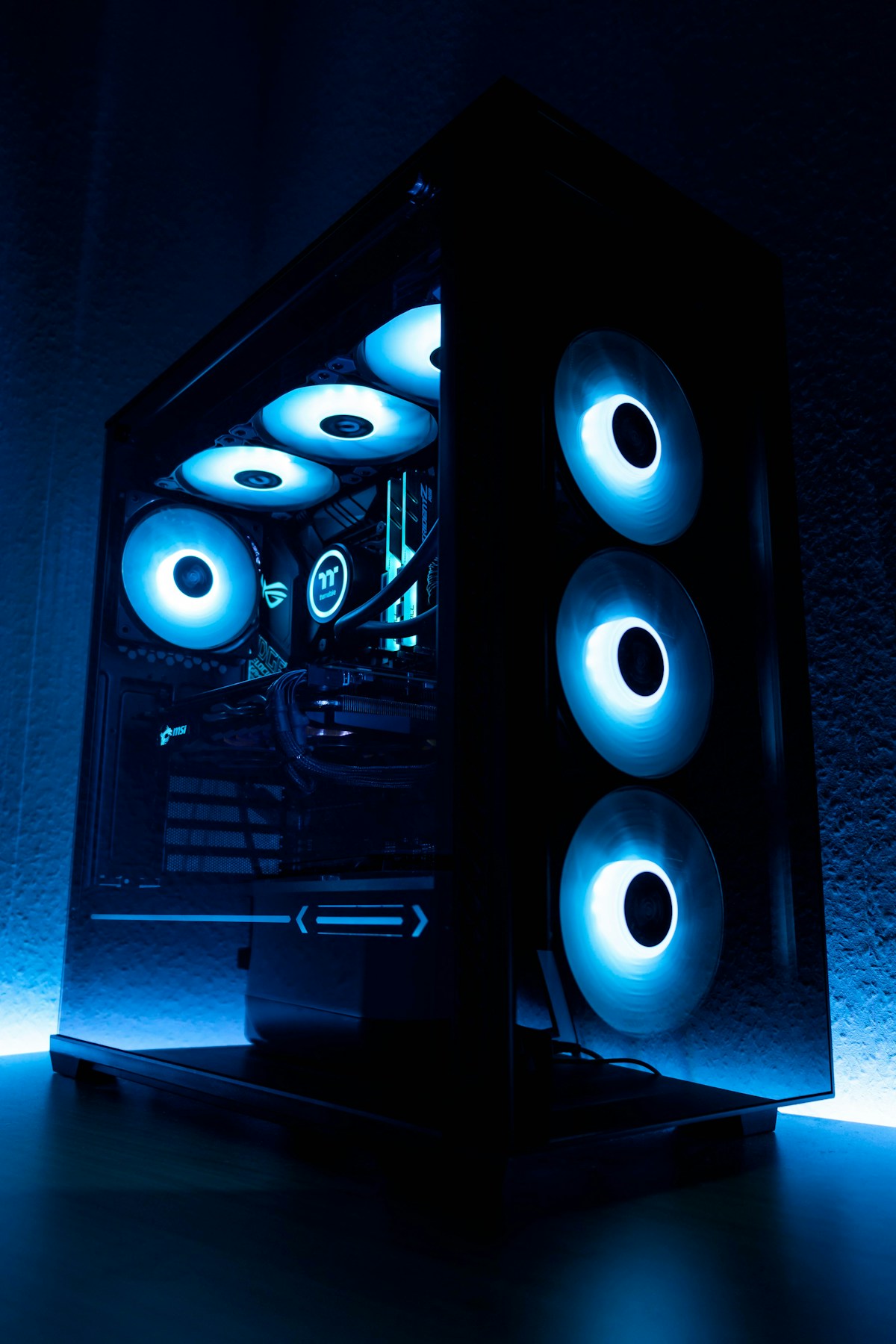
Airflow is the most common cause of overheating, and the most commonly misunderstood. Your case needs a clear path for cool air in and hot air out: intake fans at the front or bottom, exhaust fans at the rear and top. Make sure the fans are actually pointing the right way, because a fan installed backwards fights the rest of the system. Keep cables tied away from the airflow path, and do not push the case against a wall or inside a closed desk compartment. A case with a mesh front panel cools far better than one with a solid glass front, so if your temperatures are high, the case itself may be the bottleneck.
Clean the Dust Out
Dust is a slow killer of cooling. It clogs fan blades, coats heatsinks and blocks the fine mesh of dust filters, gradually strangling airflow over months. Open the case every few months and clean it with compressed air, holding fans still while you blow them out so they do not spin out of control. Clean the dust filters on the intake fans, and check the graphics card fans too, because they collect dust quickly. A five-minute clean can drop temperatures by several degrees, and it costs almost nothing.
Adjust Fan Curves and Settings
Many PCs ship with quiet fan curves that prioritise silence over cooling. Open your motherboard software or BIOS and set a more aggressive fan curve, so fans spin up earlier as temperatures rise. The extra noise is usually modest and the temperature drop is real. In your graphics card software, you can also set a custom fan curve and, if needed, undervolt the card: reducing voltage slightly while keeping the same clock speeds can cut temperatures by several degrees with no performance loss. It takes a little testing, but it is one of the most effective free fixes available.
Check Thermal Paste and the Cooler
If your PC is several years old and temperatures have crept up over time, the thermal paste between the CPU and its cooler may have dried out. Replacing it is a cheap job that can restore several degrees of cooling. While you are in there, check that the cooler is mounted firmly and that the pump is running if you use liquid cooling. A cooler that has come loose or a pump that has failed will cause rapid overheating. If you are still using the stock cooler that came with your CPU, a modest aftermarket air cooler is one of the best value upgrades in PC gaming.
Room Temperature and Placement
Your PC can only cool itself with the air around it. A room that hits 30 degrees in summer makes every cooling job harder, so keep the room ventilated and the PC out of direct sunlight. Never place the case on carpet, because it blocks the bottom intake and sucks up dust. Raise the case onto a desk or a hard stand, and leave space around it on all sides. Small placement changes like these add up, and they cost nothing at all.
Key Takeaways
- Check temperatures under load first: sustained readings in the 90s need attention.
- Set up proper airflow with intake at the front and exhaust at the rear and top.
- Clean dust from fans, heatsinks and filters every few months.
- Use a more aggressive fan curve and consider undervolting your graphics card.
- Replace old thermal paste and keep the case off carpet and out of direct sunlight.
Frequently Asked Questions
What temperature is too hot for a gaming PC? Sustained temperatures above 90 degrees Celsius for the CPU or GPU are a warning sign. Occasional short spikes are normal, but constant high temperatures cause throttling.
Does dust really make a PC overheat? Yes. Dust clogs fans and heatsinks and blocks airflow, and temperatures creep up over months as it builds. Regular cleaning prevents most of it.
Should I use liquid cooling or air cooling? A good air cooler is enough for most gaming PCs and is simpler and more reliable. Liquid cooling helps in small cases or with very hot CPUs, but adds complexity.
Is undervolting safe? Yes, when done gradually. Reducing voltage while keeping clock speeds stable is widely used and can cut temperatures with no performance loss. Test for stability after each change.
Overheating is usually a maintenance problem, not a hardware problem. Clean the dust, fix the airflow, tune the fan curves and check the thermal paste. Do those four things and most gaming PCs run cooler, quieter and faster without spending a fortune on new parts.
More from GameVault 668