How to Reduce Lag in Online Games: A Practical Fix-It Guide
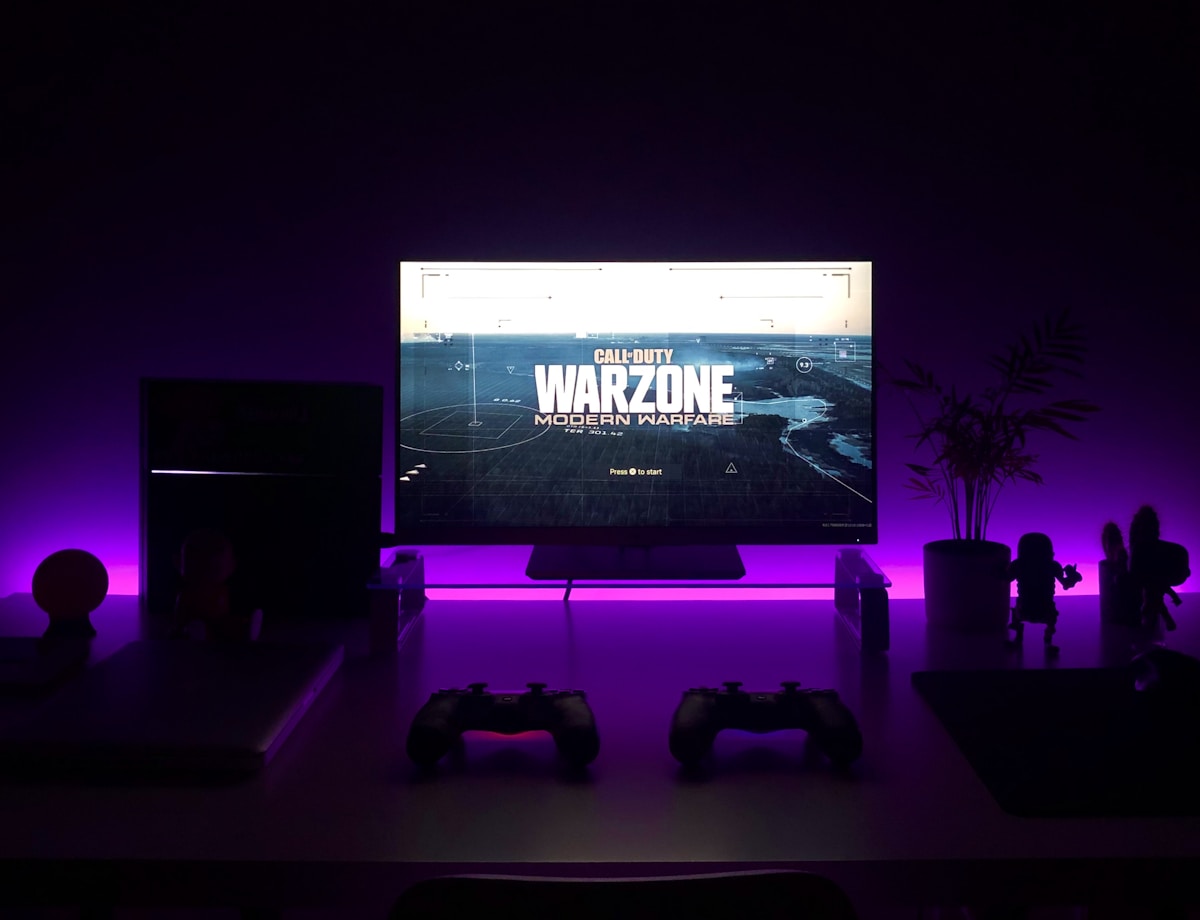
- Primary Signal: How to Reduce Lag in Online Games: A Practical Fix-It Guide
- Overview: Lag ruining your matches? Work through this practical guide: connection, settings, hardware, and the fixes that actually help....
- Verification: Analyzed and compiled by GameVault 668 editorial monitoring desk.
Few things are more frustrating than losing a gunfight you should have won because your game stuttered at the wrong moment. Lag has several different causes, from your internet connection to your hardware settings, and fixing it means diagnosing which one is hurting you rather than blindly buying new equipment. Work through this guide in order, and most players will find their problem in the first few steps.
A wired Ethernet connection is the single most effective lag fix for most players, because Wi-Fi introduces jitter: small, unpredictable delays that feel like stuttering even when your average ping looks fine. If running a cable is impossible, a powerline adapter or a Wi-Fi connection on the 5 GHz band near your router is the next best option.
Test your connection properly before changing anything. Run a ping test to your game region's servers and look at jitter and packet loss, not just the headline ping number. A stable 40 ms connection will feel far better than a 20 ms connection that spikes to 200 ms every few seconds.
Playing on a distant server is a common self-inflicted cause of lag. Check your game's server browser or settings and choose the region closest to you, even if your friends play elsewhere, because a 150 ms disadvantage in a fast shooter is very hard to overcome with skill. If your game auto-selects servers, look for a region lock option in the settings.
Also check whether background downloads are eating your bandwidth. Automatic updates, cloud backups, and streaming video on other devices can all spike your latency, so pause them during competitive sessions or enable quality-of-service settings on your router to prioritise gaming traffic.
Lower your graphics settings until your frame rate is stable, because frame drops feel exactly like network lag to most players. Cap your frame rate slightly below your monitor's refresh rate for consistency, turn off vertical sync if it adds input delay, and enable any low-latency mode your graphics card offers. These changes cost visual polish but buy responsiveness.
On your PC, close browser tabs and background apps, especially anything syncing files or running overlays you do not need. Keep your graphics drivers updated, and check that Windows Game Mode is not causing conflicts with your specific game, which it occasionally does.
If your ping is stable but your game still stutters, your hardware may be the bottleneck. An old hard drive can cause hitching in open-world games, a full SSD slows down writes, and a CPU running at 100 percent will drop frames regardless of your connection. Monitor your CPU, GPU, and disk usage during a match to see which component is maxed out.
Upgrade in order of impact: an SSD first if you are still on a hard drive, then RAM to at least 16 GB, then your graphics card. A new router helps only if your current one is genuinely failing or cannot handle your household's traffic, so diagnose before you spend.
Players often confuse network lag with low frame rates, but they feel different and need different fixes. Network lag shows up as delayed actions, rubber-banding, and opponents teleporting, while low frame rates feel like stuttering visuals and sluggish camera movement even in single-player modes. Learning to tell them apart saves you from buying a new router when the real problem is an overloaded graphics card, or vice versa.
Use your game's built-in network and performance overlays to diagnose properly. Most competitive games can display ping, packet loss, and frame time simultaneously, and watching those numbers during a bad match tells you immediately which system is struggling. A five-minute diagnostic session beats hours of guessing and random setting changes.
📖 Continue Reading the Full Story
Continue reading this article on GameVault 668.
⚡ Access Full Content NowMore from GameVault 668


 🚀 RocketCoin Casino
How Do Instant-Play Crypto Casino Games Work Without Downloads?
Instant-play crypto casino games run entirely in your browser with no downloads needed. Learn how HTML5 techno...
 🎰 WinBar VIP
Risk Management Playbook: Typing Speed Test — WPM & Accuracy Test Online (Day 22 Guide)
Minimizing downside volatility with the Typing Speed Test — WPM & Accuracy Test Online on WinBar VIP. Discover...
 ⚡ CyberTech 568
Internet Latency Test: How Fast Is Your Connection?
Test your internet latency free. Get accurate ping measurements and learn what your numbers mean for gaming an...
💎 LuxeLiving 768
Crypto APY Calculator UK: Staking Rewards Guide for 2026
UK crypto investors: calculate staking rewards with APY vs APR explained, tax notes for HMRC, and the best sta...