How to Reduce Input Lag on PS5: Settings That Actually Work
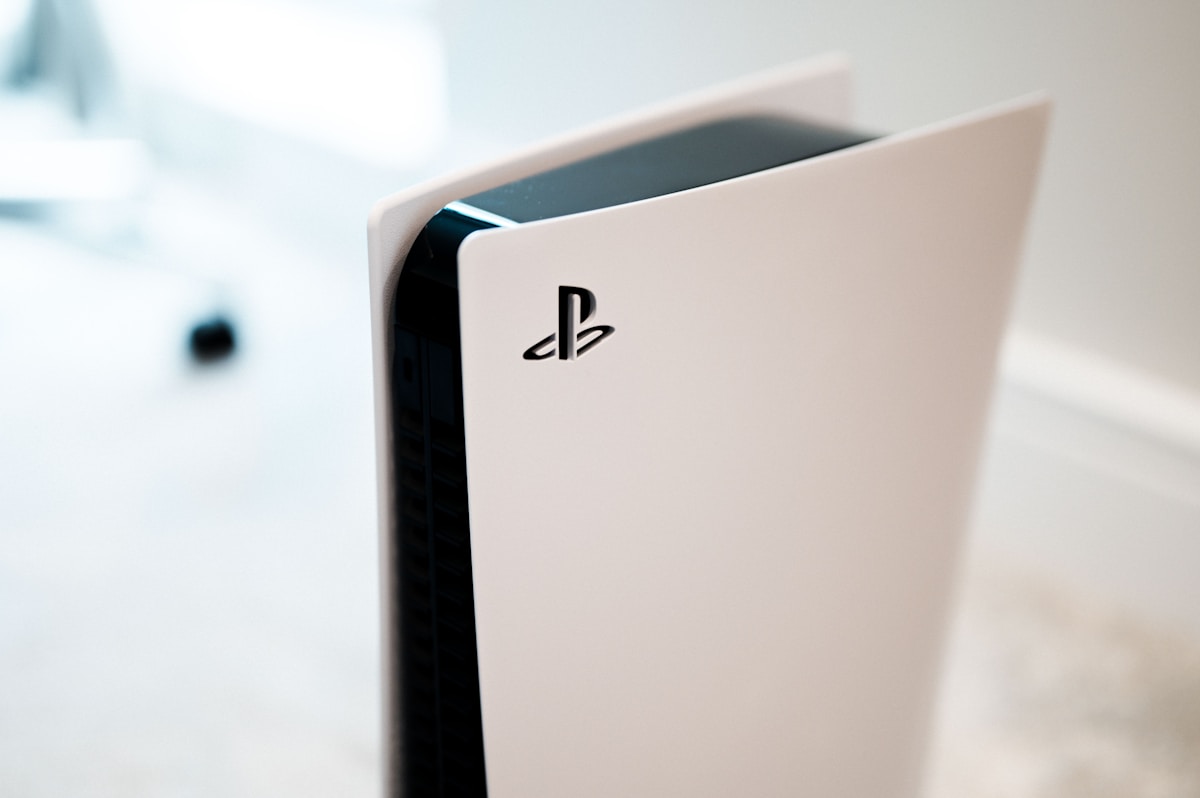
- Primary Signal: How to Reduce Input Lag on PS5: Settings That Actually Work
- Overview: Input lag is the delay between your button press and the action on screen. These PS5 and TV settings cut it measurably, in order of impact....
- Verification: Analyzed and compiled by GameVault 668 editorial monitoring desk.
Few things ruin a competitive game faster than input lag: you press dodge, and your character reacts a beat late. The delay comes from a chain of devices, console, cable, TV processing, and each link adds milliseconds. The good news is that most of the delay is fixable with settings you already own, and the fixes stack up.
This single change usually cuts more lag than anything else. Game Mode disables the motion smoothing, noise reduction and picture enhancement that make movies look good but add 30 to 80 milliseconds of processing delay. Find it in your TV's picture settings, and make sure it applies to the HDMI input your PS5 uses. Some TVs require enabling it per input, so check that it actually stuck after switching sources.
In Settings, go to Saved Data and Game/App Settings, then Game Presets, and choose Performance Mode, which prioritises frame rate over resolution. Then in Screen and Video settings, enable 120Hz output if your display supports it. Higher frame rates mean each frame reaches the screen sooner, and in supported games the difference is immediately noticeable in aiming and movement.
Connect your PS5 to an HDMI 2.1 port with the cable that came in the box, since older cables can silently cap you at lower bandwidth. Enable Auto Low Latency Mode, which tells your TV to switch to Game Mode automatically, and Variable Refresh Rate, which smooths frame pacing without adding lag. If your TV supports HDR, calibrate it once properly; badly calibrated HDR adds processing and washes out the image.
Input lag is not only the display. Turn off adaptive trigger effects and reduce vibration for competitive games, since both add small delays and distractions. Use a wired controller connection for ranked play if possible, and a wired Ethernet connection for online games, since Wi-Fi jitter feels exactly like input lag. Finally, keep at least 15 percent of your storage free, because a nearly full drive slows system tasks during long sessions.
You cannot fix what you cannot feel, so test your setup before and after each change rather than changing everything at once. Play a fast game you know well, such as a shooter or a fighting game, and pay attention to aiming, jumping and blocking rather than to graphics. If you have a phone with a slow-motion camera, you can film your controller and screen together to estimate delay roughly, although this is only a guide, not a laboratory measurement. The point is comparison: make one change, play for twenty minutes, and note whether reactions feel sharper. Keep a short list of what you changed, because it is easy to forget which setting made the difference.
Beyond the console and TV, individual games add their own delay. Motion blur, film grain and ray-traced reflections look impressive, but each one costs processing time and can make fast movement harder to read, so turn them off for competitive play. Some games offer a performance mode of their own, separate from the console preset, and a high frame rate mode inside the game menu. Check the display or graphics menu of every competitive title you play regularly. Also disable any in-game setting labelled as smoothing, interpolation or frame generation for multiplayer, since these techniques insert extra frames that look smooth but arrive late.
The most frustrating lag problem is Game Mode switching itself off. This often happens when you route the console through a soundbar or AV receiver that adds its own processing, or when you switch to a streaming app on the TV and the picture mode does not switch back. If your TV has different picture modes per input and per app, check the mode again after returning to the game. Similarly, a second HDMI device, such as a capture card or splitter, can force a lower bandwidth or disable low-latency features. Connect the PS5 directly to the TV when you want the lowest lag, and test any device in the chain by removing it temporarily.
Start with Game Mode, then Performance Mode and 120Hz, then the cable and latency settings. Each fix is free, each one stacks, and together they can take a sluggish setup from over 80 milliseconds of delay to under 30.
📖 Continue Reading the Full Story
Continue reading this article on GameVault 668.
⚡ Access Full Content NowMore from GameVault 668

 ₿ Lucky Satoshi
What Are Bitcoin Casino Loyalty Points and How Do They Work?
Loyalty points are earned per wager and climb you through tiers toward cashback, reloads, and better limits. T...
 ☁️ FreeSky Cloud
Best Windows 11 Settings for Gaming PC in 2026 (Reddit-Approved Tweaks)
Game Mode, GPU scheduling, power plans, and clean driver installs — the Windows 11 settings experienced PC gam...
 🎰 WinBar VIP
How Progressive Jackpot Slots Work Behind the Scenes
Progressive jackpots look like magic, but the machinery behind them is pure math: seed amounts, contribution r...
 ⚡ CyberTech 568
Best Free AI Voice Changer for Gaming in 2026
A good voice changer adds fun to game night without lag or robotic audio. Compare the best free options for Di...