How to Choose a Gaming Microphone for Streaming Under $50
- Primary Signal: How to Choose a Gaming Microphone for Streaming Under $50
- Overview: You can sound clear and professional on stream for under $50, but only if you pick the right pickup pattern and ignore the wrong specs. Here is how to choose wisely....
- Verification: Analyzed and compiled by GameVault 668 editorial monitoring desk.
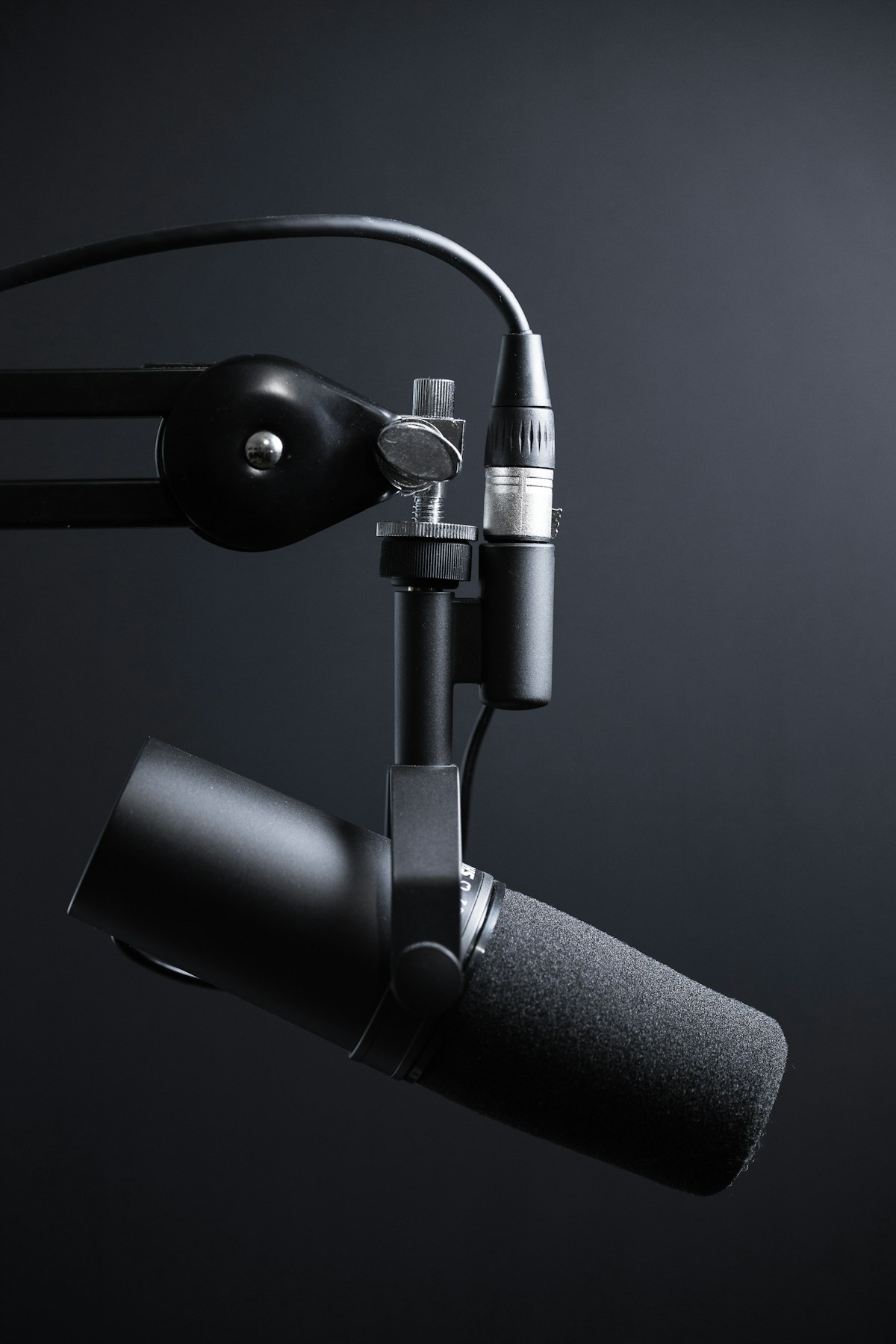
Your viewers will forgive average video, but they will leave a stream with bad audio. A microphone that picks up every keyboard clack, echoes around a bare room, or makes your voice sound thin and distant drives people away faster than a dropped frame. The good news is that you do not need a studio budget to sound good: several excellent USB microphones cost under $50, and the difference between a good and a bad choice at this price usually comes down to a few decisions made before you buy.
At under $50, USB is almost always the right choice. A USB microphone plugs straight into your computer, has a built-in preamp and converter, and works with streaming software immediately, with no extra equipment. XLR microphones can sound superb, but they need an audio interface or mixer that alone costs more than your whole budget, plus cables and stands. That extra chain also adds setup complexity that can introduce hum and gain problems for beginners. Unless you already own an interface, spend your $50 on the best USB microphone you can afford and put the XLR upgrade off until your channel earns enough to justify it.
Almost every good budget streaming microphone uses a cardioid pickup pattern, which means it hears sound mainly from the front and rejects sound from the sides and rear. That is exactly what a streamer needs, because it focuses on your voice and reduces keyboard noise, fan hum and room echo behind the microphone. When shopping, check the specifications for the word cardioid and be wary of microphones that advertise omnidirectional pickup as a feature for solo streaming, since they will capture everything in the room. Position the microphone so its front faces your mouth and its rear faces the noisiest part of your room for the best rejection.
Two specifications deserve your attention: frequency response and sample rate, and even these matter less than reviews. A frequency response roughly covering 50Hz to 16kHz or wider is fine for voice, and a sample rate of 48kHz at 16-bit is the standard for streaming, so anything claiming far higher numbers is not giving you audible benefits. Ignore headline claims about studio quality, broadcast ready sound and celebrity endorsements, and instead read and listen to real user recordings, which many reviewers publish. A microphone with a headphone jack for zero-latency monitoring is genuinely useful, because it lets you hear yourself without the delay that makes speaking feel strange.
No microphone can fix a noisy room on its own, but cheap changes make a bigger difference than upgrading the microphone. Close windows and doors during streams, move the microphone away from your PC fans and air vents, and put a rug, curtains or even a blanket on hard surfaces near your desk to reduce echo. A simple pop filter, often included or available for a few dollars, stops harsh plosive sounds on words starting with P and B. Speak closer to the microphone, about a fist's width away, and turn the gain down, since a quiet room with a close microphone always sounds cleaner than a loud microphone in an echoing room.
Once your microphone arrives, set it up properly before judging its sound. Place it on a stable stand or boom arm at mouth height, slightly off to one side so it does not block your face on camera, and angle it toward your mouth rather than speaking across it. In your streaming software, set the input gain so your normal speaking voice peaks in the middle of the meter, not at the top, and add a gentle noise suppression filter if your software offers one. Test with a short recording and listen back on headphones, checking for hum, echo and keyboard noise. Small position changes, moving the microphone an inch closer or further, often matter more than software filters.
The most common waste at this budget is buying twice: first a flashy microphone with lights and a gimmick, then a proper one when the first disappoints. Avoid microphones whose main selling point is RGB lighting, a bundled ring light, or a celebrity streamer's name, since none of these improve sound. Avoid buying an expensive shock mount, boom arm and pop filter before you know whether you like the microphone itself; use the included stand first and upgrade accessories later. Finally, do not assume a higher price within the budget always means better sound: read comparisons, listen to samples, and buy from a seller with easy returns so you can test the microphone in your own room.
For under $50, choose a cardioid USB microphone from a reputable budget brand, set it up close to your mouth in a quietened room, and judge it by real recordings rather than marketing claims. Spend the money you save on room treatment and a decent stand later, not on lights and gimmicks now. Your viewers will hear the difference immediately, and so will you.
📖 Continue Reading the Full Story
Continue reading this article on GameVault 668.
⚡ Access Full Content NowMore from GameVault 668


 ⚡ CyberTech 568
Best Free AI Voice Changer for Gaming in 2026
A good voice changer adds fun to game night without lag or robotic audio. Compare the best free options for Di...
 ₿ Lucky Satoshi
Why Is My Bitcoin Casino Deposit Pending or Unconfirmed?
A pending bitcoin casino deposit is usually waiting on blockchain confirmations or the casino's payment proces...
 ☁️ FreeSky Cloud
Best Windows 11 Settings for Gaming PC in 2026 (Reddit-Approved Tweaks)
Game Mode, GPU scheduling, power plans, and clean driver installs — the Windows 11 settings experienced PC gam...
 🎰 WinBar VIP
The Complete 2026 Strategic Blueprint: Inside The Velocity Behind Crypto Casino Alpha
Comprehensive 2026 research dossier and telemetry report on The Complete 2026 Strategic Blueprint: Inside The ...